

For participants of the LEAD.bot Standard and Engagement Plans, it’s essential that company admins communicate the following basics prior to and throughout the program.
Please distribute the following information to your employees through the company newsletter or other notification systems. If you require a branded version from LEAD.bot, kindly request one at cs@.
1. What to expect:
After joining a coffee-connect channel or team, you’re randomly paired with a “coffee buddy” from the channel /team. Why? As many of us work remotely or hybrid, we want to enable you to connect, just like in the office or around a coffee machine. Share your favorite Netflix movie, learn about different cultures, and have a chit-chat with coworker you usually don’t interact with.
2. Participant Profile
Your Participant Profile is your personal showcase, highlighting your bio, job details, and interests. By filling it out, you not only enable deeper connections with coworkers but also get to customize your matching settings. You can enable/disable certain matches, set your work timezone, opt into birthday celebrations, and view your match history, making it a key step towards more personalized and meaningful collaborations. It’s your gateway to a stronger, more connected workplace.
Learn more about setting up your Profile and follow the instructions here: “Profile
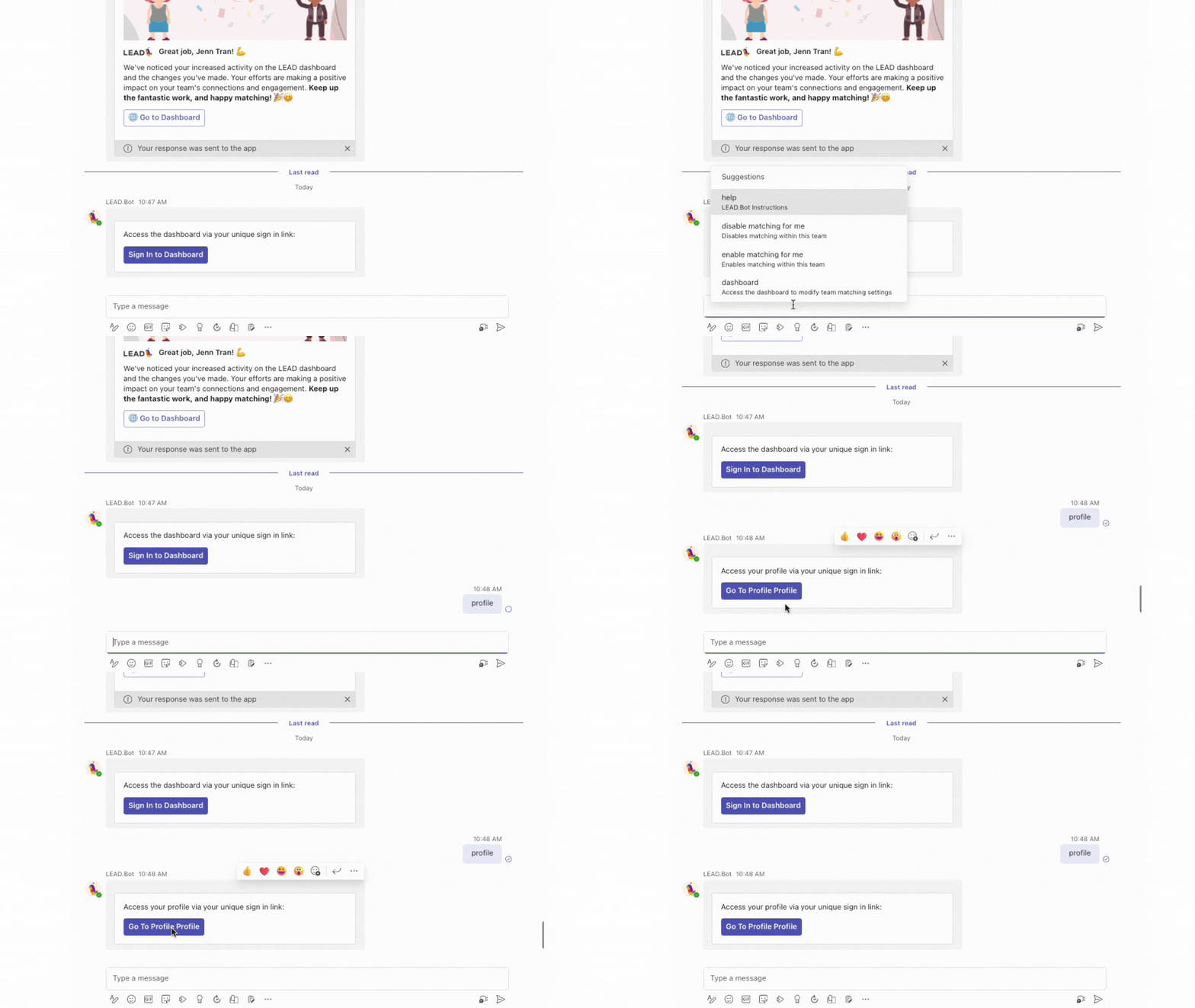
To access profile page, for Slack:

For Microsoft Teams: type command “profile” as a direct message to LEAD.bot
3. Connect your calendar
For Slack: When prompted, connect your Google or Outlook calendar to let LEAD.bot suggest time slots when both participants are available for a quick chat.

For Microsoft Teams: Once your organization’s admin enables calendar integration, LEAD.bot will display an additional card suggesting time slots when both parties are available to meet. Simply select a preferred slot, and LEAD.bot will automatically schedule a quick call, syncing it with both parties’ calendars.

4. How will I know I was matched?
♦ You’ll get an interactive LEAD.bot matching card pairing you up with a surprise match from the #coffee-connect team.

♦ Check with whom you were matched.
♦ Decide when you would like to meet. Found a perfect slot? Click on
♦ Propose meet up. Now your “coffee buddy” needs to confirm it, and then LEAD.bot will automatically send a calendar invitation through your calendar.
♦ In addition to scheduling a coffee meetup, you can also initiate a friendly greeting with your coffee match directly in the chat box

5. Knock, knock it’s LEAD.bot checking if you’ve met!
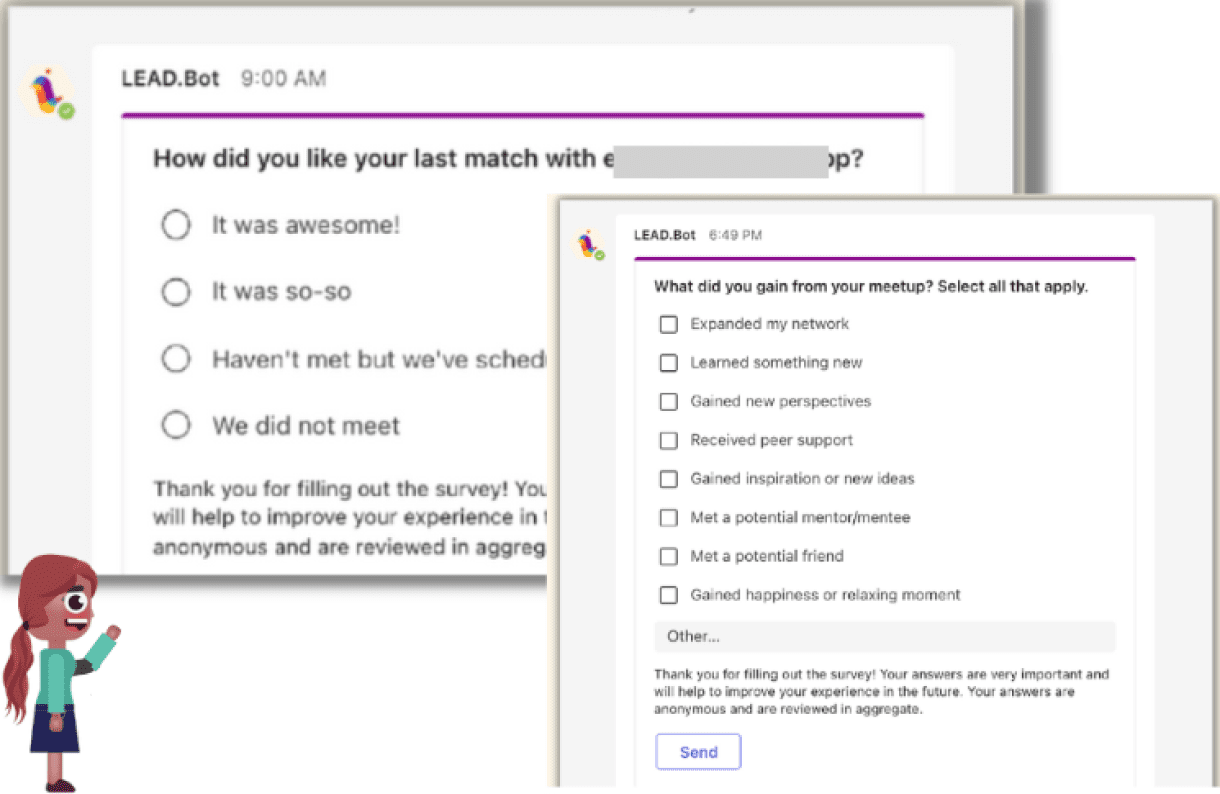
♦ When one round of Coffee Match is over, you’ll get a check-in message from LEAD.bot asking if you two had a chance to chat.
♦ Be honest and share it with LEAD.bot. 🙏
♦ This information is important for analytics and helps us understand if the feature is used or if we need improvements.
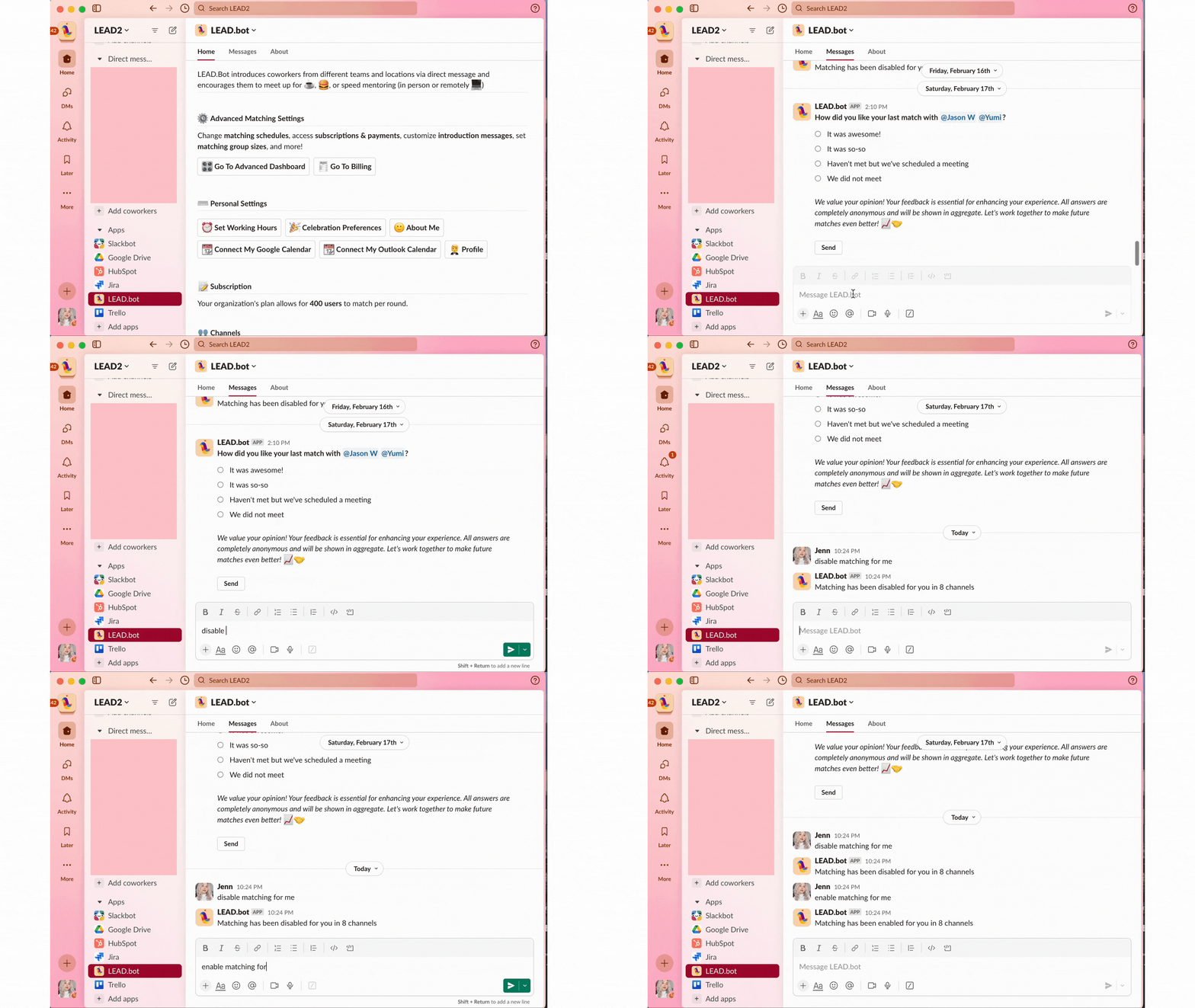
6. Managing Your Matching Preferences: How do I pause / opt out/ opt back in the coffee matching for myself?
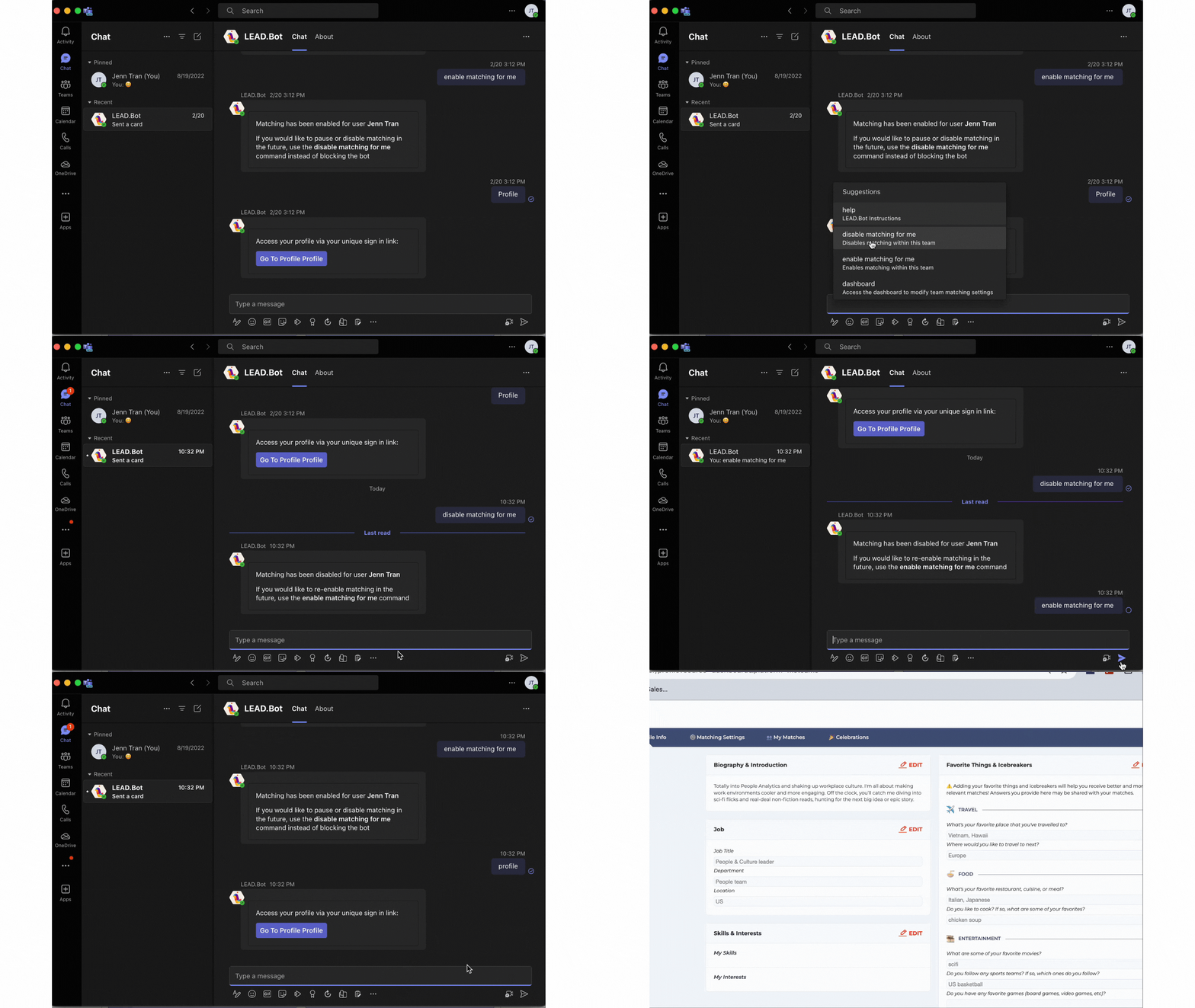
Type command “disable matching for me” as a direct message to the bot or “enable matching for me” as a direct message to the bot
For Slack:
For Microsoft Teams
7. How to view matching history
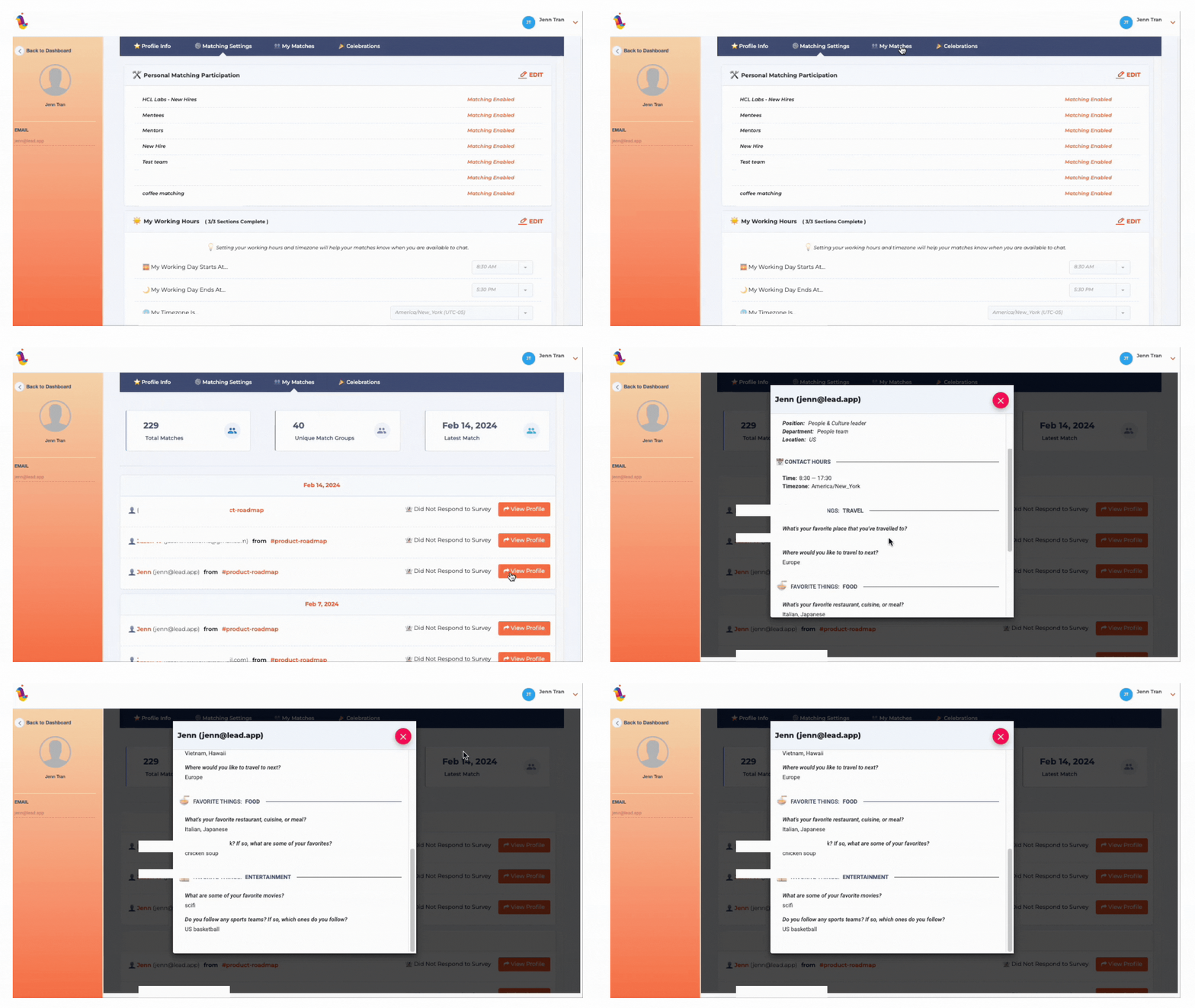
To view your matching history, please visit your Profile page, head over to the tab: “My Matches”. There, you’ll find details of your previous matches, including their profiles
8. How do I enable/disable Celebrations
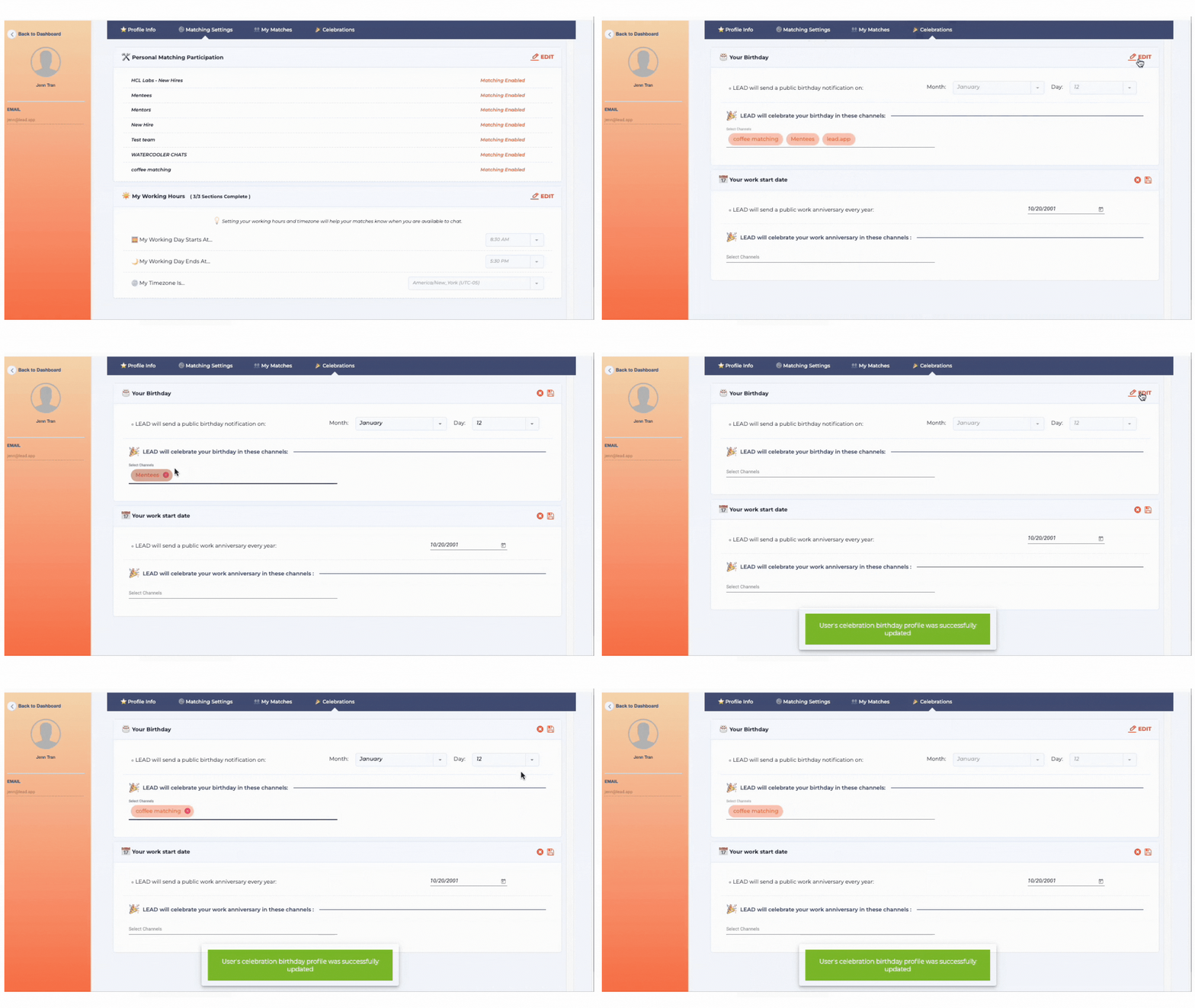
You can manage the Celebrations feature by navigating to the Celebrations tab. Here, you can enable or disable the feature by selecting or deselecting the channels/teams for posting Birthdays and Work Anniversaries. If you prefer to limit Celebrations messages to specific channels or teams, simply choose those you wish to include and click ‘Save’ to apply your preferences
Should you require further information or assistance, please do not hesitate to contact us at cs@