
LEAD Support · Microsoft Teams
Not receiving LEAD introductions in Microsoft Teams?
Start with your LEAD.Bot chat, then check app access and matching participation. These steps help you and your administrator find out what needs attention.
Updated November 10, 2026
For the person missing an introduction
1. Check your LEAD.Bot chat
Use the right work account and organization
Open Teams on desktop or in your browser. Select your profile picture and check that you are using the work account and organization where your matching program runs.
Find LEAD.Bot in Chat
Open Chat and search for LEAD.Bot. Right-click its row in the chat list, or hover over the row and select More options (…).

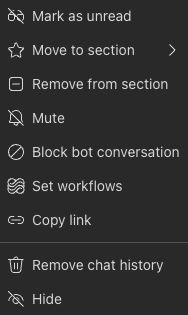
Read the wording before selecting an option
- Unblock bot conversation
- The chat is blocked. Select this if you want to receive introductions again.
- Block bot conversation
- The block is not currently applied in this chat. Leave this option as it is.
- Mute / Unmute
- This controls notifications separately. If the introduction is in your chat but you missed the alert, check this setting.
Send a quick check
Type help in your direct chat with LEAD.Bot and press Send. If it replies, the chat responds now. If it does not, note any message or error and continue below.
If the chat or block option is missing, continue to Check app access. An introduction can be missing for several reasons; this check does not assume that you blocked the bot.
Microsoft help: Switch accounts and organizations · Mute or unmute a chat
2. Check app access
Find the installed app
Select Apps (called Store in some versions), then Manage your apps. Search for LEAD.Bot, published by LEAD Tech Inc.. Expand its row to see where it is installed.


Open the app or note the restriction
- If Teams offers Open, select it and retry help in the bot chat.
- If Teams offers Add, you can add the app for yourself if your organization permits it.
- If the app is missing, unavailable, or shows Request access, note the wording and share the IT checks below with your Teams administrator.
Microsoft help: Manage your apps in Teams
For the LEAD program admin
3. Check matching participation
In the LEAD dashboard, open Matching and select the team running the program. Check that the member is in the roster and has matching enabled for that team. Review the schedule and latest round to confirm that an introduction was due.
After Teams access is restored, confirm that the member wants to participate before re-enabling matching. Restoring app access does not necessarily restore their matching participation.
If those checks look right, ask the member to check the LEAD.Bot chat in Teams web as well as desktop. If the introduction is still missing, contact LEAD Support with the details below.
For the Microsoft Teams administrator
4. Verify the member’s app access
Use these checks if the member cannot open LEAD.Bot, sees an access message, or cannot get a reply after checking their personal chat.
Check the app’s availability
In Teams admin center, go to Teams apps → Manage apps and open LEAD.Bot (LEAD Tech Inc.). Under Users and groups → Availability, confirm the member is covered directly or through an assigned group. If your tenant still uses Permission policies, check the policy assigned to the member.
Check the user’s app assignment
In Users → Manage users, open the affected user and select Apps. Where this view is available, search for LEAD.Bot and check how it is assigned. Confirm that the member is using this same work account and can open the app in Teams.

Microsoft guidance: Manage Teams app access for a user or group
Still missing an introduction?
Email support@lead.app with:
- The member’s work email, Teams organization and team name
- The approximate date and time of the missed round, including the time zone
- What happened when the member opened LEAD.Bot or sent help
- Screenshots of the chat menu or any error, leaving unrelated chats out
- The app assignment result, if IT checked it
We can check whether LEAD created an introduction and whether Teams accepted its card. Teams acceptance does not confirm that the card appeared on screen or that the member saw an alert.