

Cluttered calendar making it hard to keep up with your coworkers? Worry no longer! LEAD.bot is excited to announce our new calendar integration feature for Microsoft Teams.
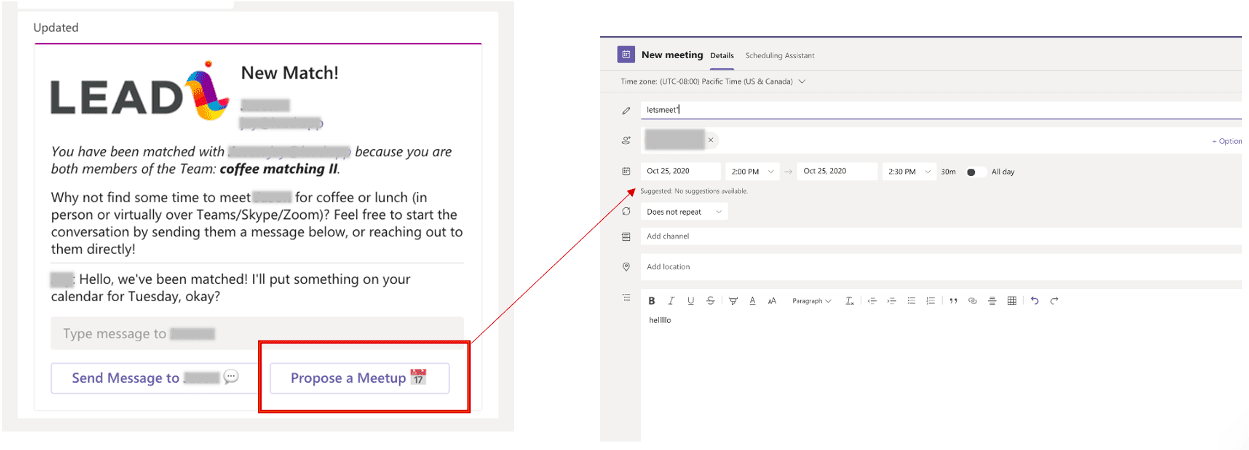
After LEAD.bot sends out matches, each user will receive a card that introduces them to each other. Through this card, users will get the opportunity to send each other a message and schedule their meetings that match their availability right into Microsoft Outlook.
With this new feature, admins can customize the meeting name to make it unique to the company; users can customize the date, time, agenda and location of their meeting, so they can get the most out of LEAD.bot. Whether you want to meet for 15 minutes at a local coffee shop to introduce each other or hold a 45-minute office orientation over zoom, LEAD.bot has your back.
How to use calendar integration in Microsoft Teams
Each card will introduce matches to each other and name the team from which they were matched. The card will also include two buttons: “Send Message to [match name]” and “Propose a Meetup”. Clicking the “Propose a Meetup” button will take users to a window for a new Outlook event. Through this window, users can rename their meetings to suit their needs, set meeting times and create descriptions for their meetings as well.
While users can message and schedule meetings directly through the card, matches can also choose to reach out to each other directly. The card will also include the user’s Outlook email.
When to use calendar integration features
As you may have figured out while using LEAD.bot, not all employee matching meetings have the same requirements. The new calendar integration feature for LEAD.bot in Microsoft Teams will help users fine-tune their employee matching programs.
Just because meetings are initiated online doesn’t mean every meeting should be treated the same. After all, you wouldn’t treat office pizza parties the same as for board meetings. To really get the most out of LEAD.bot, it helps to match the format of the meeting to its purpose.
Take, for example, a company that wants to run an employee matching program for socializing during happy hours and also wants to run a mentorship program.
The employee matching for the happy hour program might be better suited for Friday evenings. Depending on whether or not remote work is in place, matches can use the calendar integration feature to mark whether the event is happening online or in person. Plus, with the name customization feature, admins can make sure that matches don’t assume they have a regular meeting on their schedule and can relax or prepare appropriately.
On the other hand, this company’s mentoring program would be best suited as a midweek coffee chat. With the calendar integration feature, mentors and mentees alike have the flexibility to schedule check-ins as needed. While their check-ins might normally be scheduled for a Wednesday lunch, a mentee could use the calendar integration feature to ask for advice before important presentations. If the company is not engaged in remote work, mentors could set the location to local coffee shops or cafes to really give the mentee the lay of the land.
Remote work or in-person, casual or formal, cocktails or coffee, LEAD.bot is here to make office socializing smoother. Add LEAD.bot to Microsoft Teams and take full advantage of all the customization options today.