
Skip to content

LEAD

  • Products

    Products

    LEAD.bot for Slack & Microsoft Teams

    Sunrize App for Slack

    Use Cases

    Knowledge Transferring

    • Inclusive Peer Learning & Mentorship
    • Optimize Workforce Collaboration
    • New Hire Onboarding

    Employee Engagement

    • Pulse Survey
    • Birthday and Anniversary Celebration
    • Viture Watercooler

    Knowledge Management

    • Knowledge Network Insights
    • Subject Matter Expert Finder

    Solutions

    Streamline your network analysis with our tailored approach. Our experts will work with you to identify the optimal solution that best fits your needs.

    Contact Sales
  • Customer Stories
  • Integrations
  • Pricing
    • LEAD.bot for Teams Pricing
    • LEAD.bot for Slack Pricing
  • Resources
    • Blog
    • Customer Stories
    • Alternatives
  • FAQ
    • FAQ: LEAD.bot for Microsoft Teams
    • FAQ: LEAD.bot for Slack
  • Try LEAD.bot for Free
    Start With Slack
    Start with Teams
Mar52024
Microsoft TeamsAdmin FAQs for LEAD.bot

Q1: How to Set Up LEAD.bot for Your Team

1. Creating and Installing LEAD.bot:

♦ For New Teams: If you’re aiming to create teams specifically for coffee matching or other initiatives, you can start a new team.

♦ For Existing Teams: You can easily add LEAD.bot to any current team/ teams. You can invite the bot to as many Teams as you like

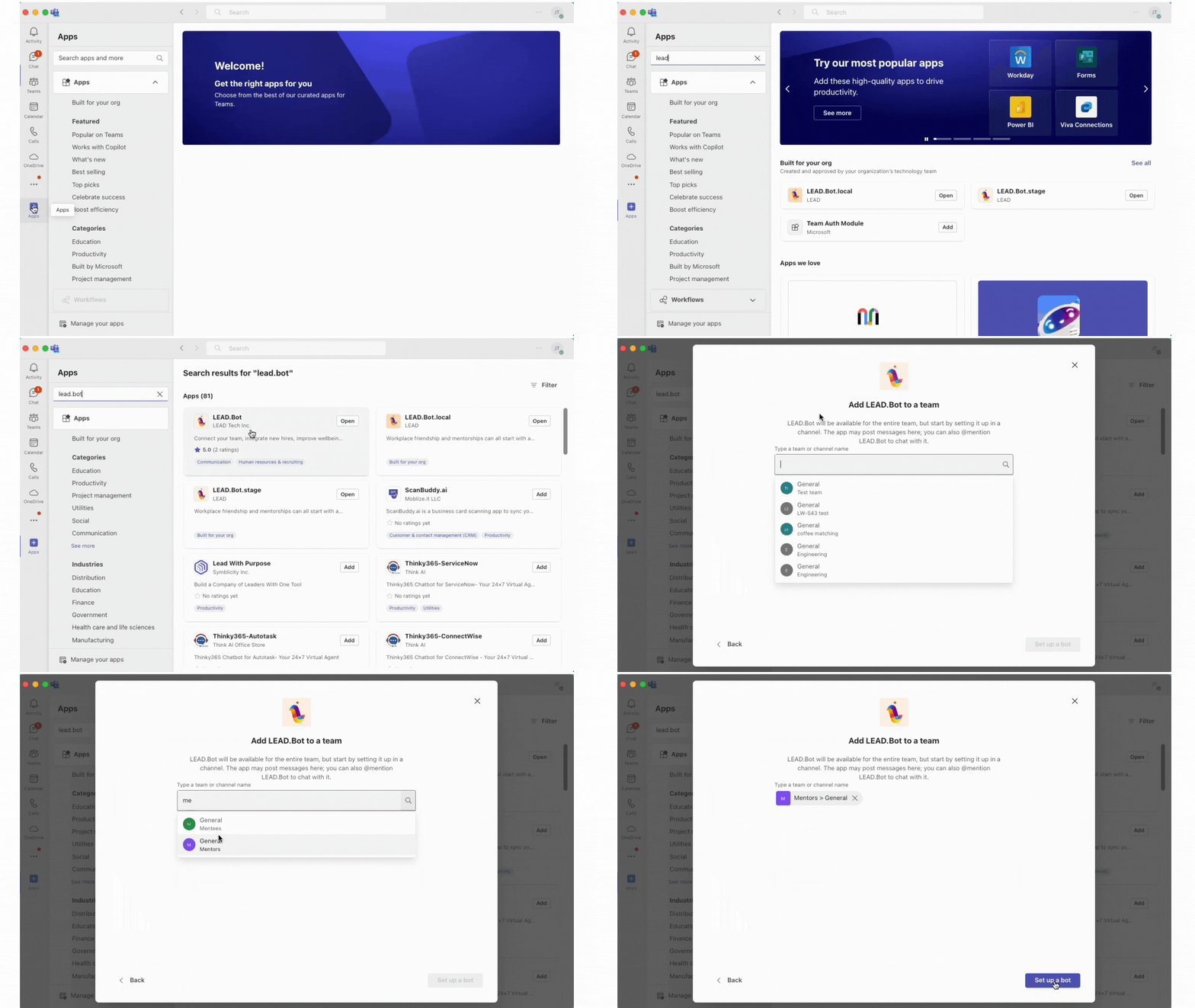
👉  Installation Steps:

Navigate to the App section, select “Manage Applications,” click “Add,” search for LEAD.Bot, and integrate it with your chosen team. Here’s a tutorial video for guidance.
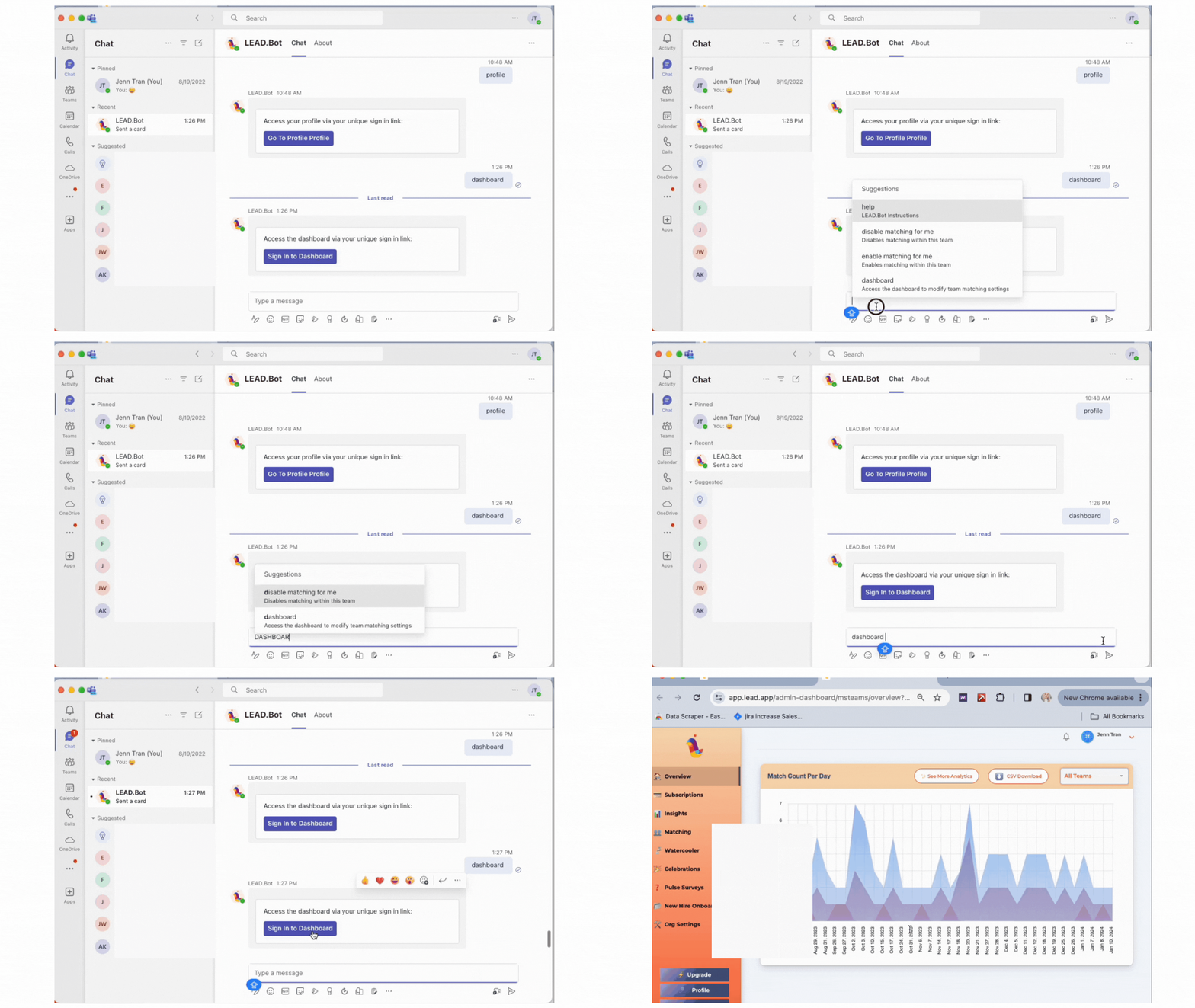
👉  Accessing the Admin Dashboard:

Simply type “dashboard” as a direct message to LEAD.bot to open the admin dashboard.
👉 Important Considerations: ensure you add LEAD.bot to a team/teams, NOT a channel/channels. IThis is crucial for functionality, as Microsoft Teams APIs do not support bot operations in channels. Teams can be either public or private. 

Q2: Default Matching Schedule:

Upon adding LEAD.bot to Teams, the initial setup matches pairs every other Monday by default. Matches are sent out at 10:00 a.m. PST. To modify this schedule, admins can access the dashboard and adjust the frequency to weekly, monthly, or any preferred interval for matching. Customizations can be made at any point to suit your team’s needs.

Q3. How to upgrade after your trial 

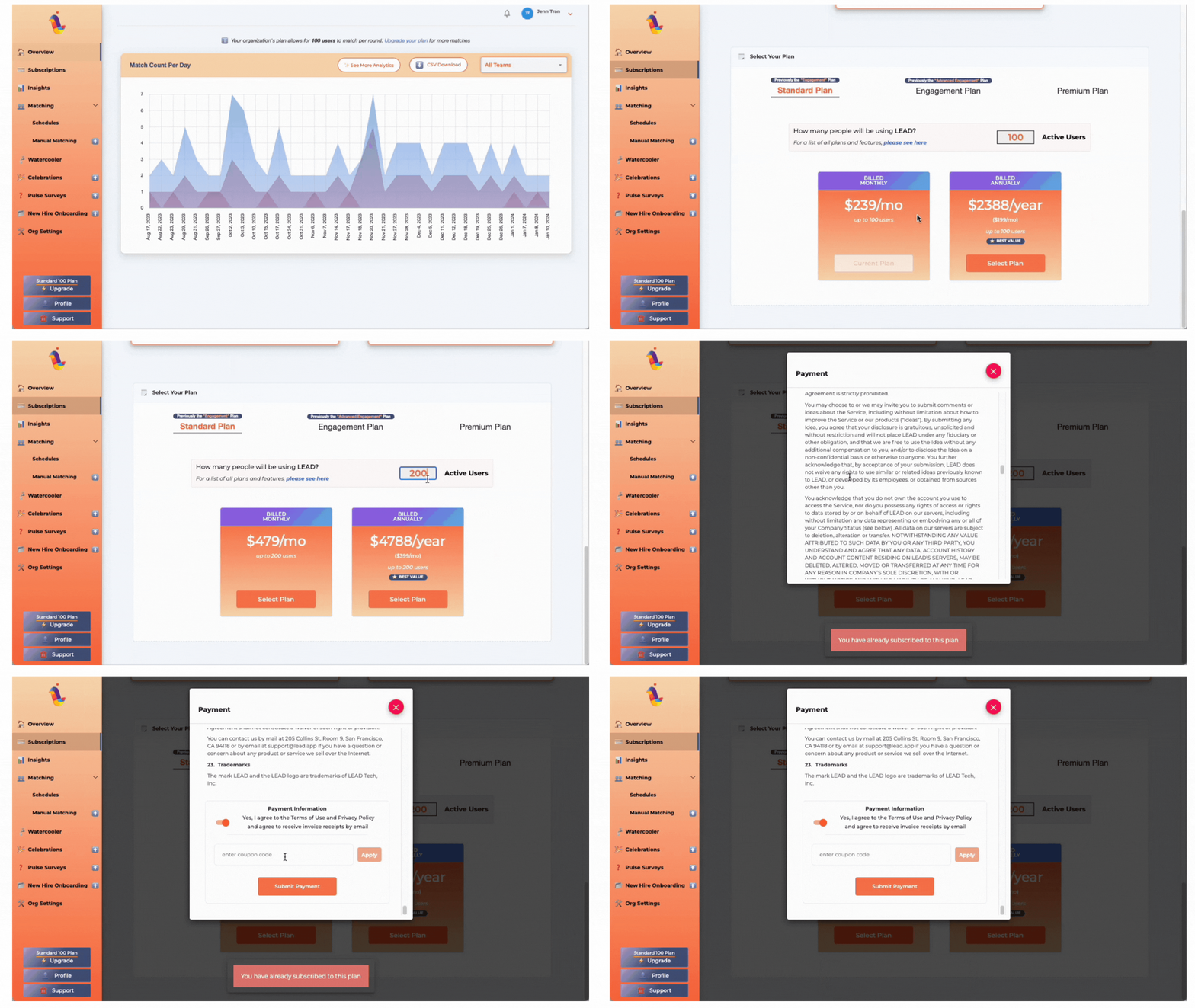
For the Standard Plan, please follow the steps below: 

      1. Determine the number of user seats you need for your team.
      2. Access the dashboard by logging in.
      3. Navigate to the “Upgrade” section.
      4. Select your desired plan from the options available.
      5. Enter the number of users you wish to subscribe to.
      6. Agree to our Terms & Services.
      7. Enter your credit card information to complete the upgrade.

♥  If you’re interested in the Engagement Plan or the  Enterprise plan, please reach out directly to cs@lead.app for personalized assistance.

♥  This streamlined process ensures you can smoothly transition from trial to full access, tailored to your team’s needs.
Q4. How to view and edit LEAD.bot channel ownership and access 

Start by typing command “dashboard” as a direct message to LEAD.bot to open the admin dashboard. Within the dashboard, navigate to the “Org Settings” section to view or adjust channel ownership and access rights. Save any changes you make to ensure they are applied.

Q5: Matching Configuration instructions: 

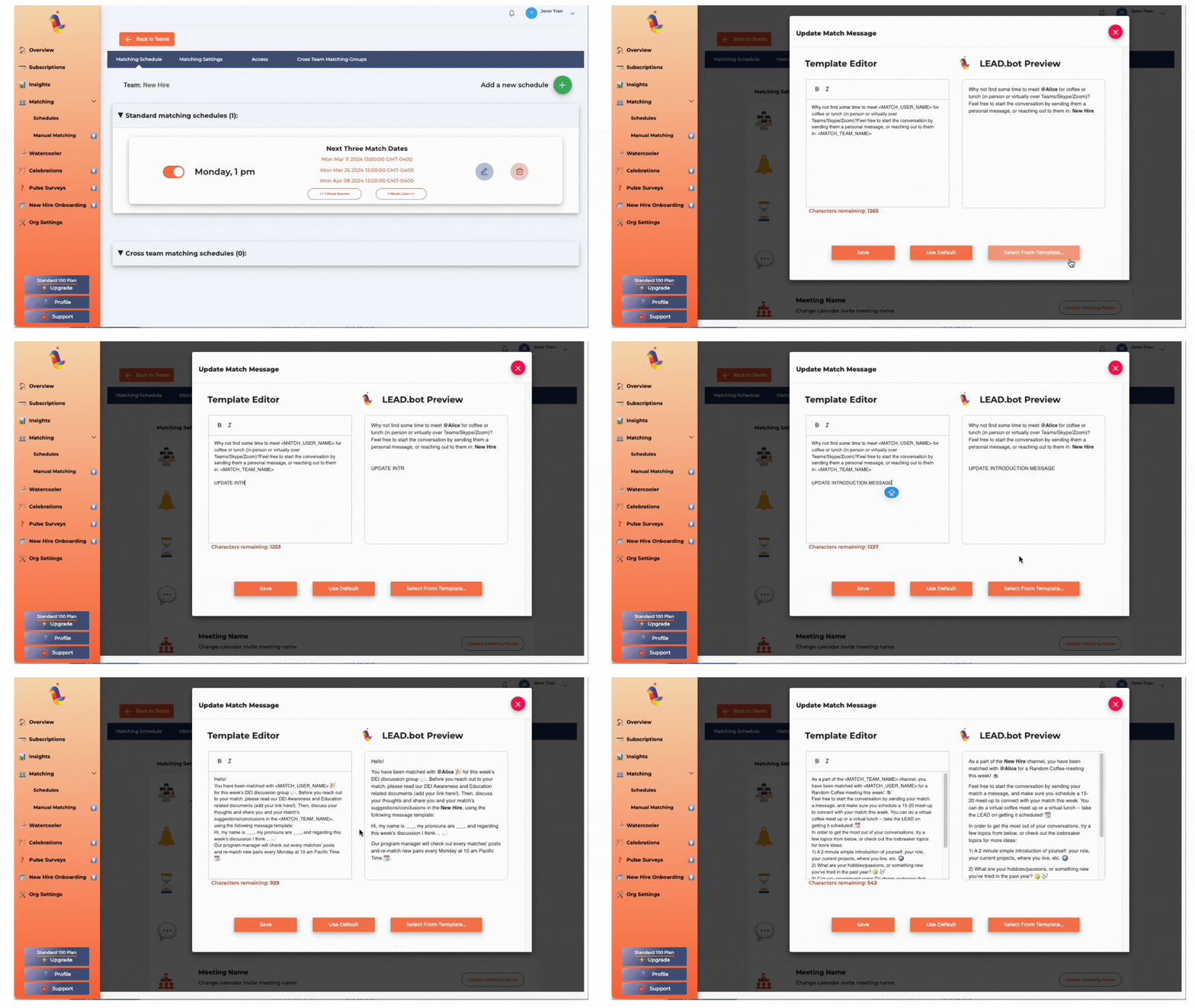
1. How Do I Reschedule the coffee matching for my channel? How do I change the frequency, next intro date, and other settings in my LEAD.bot Intros Channel?

2. How do I customize the introduction message?
Q6: How To: Introduce People Across Different Teams with LEAD 

Introduce teammates across different team via cross-team matching. Please see here for tutorial video guidance.

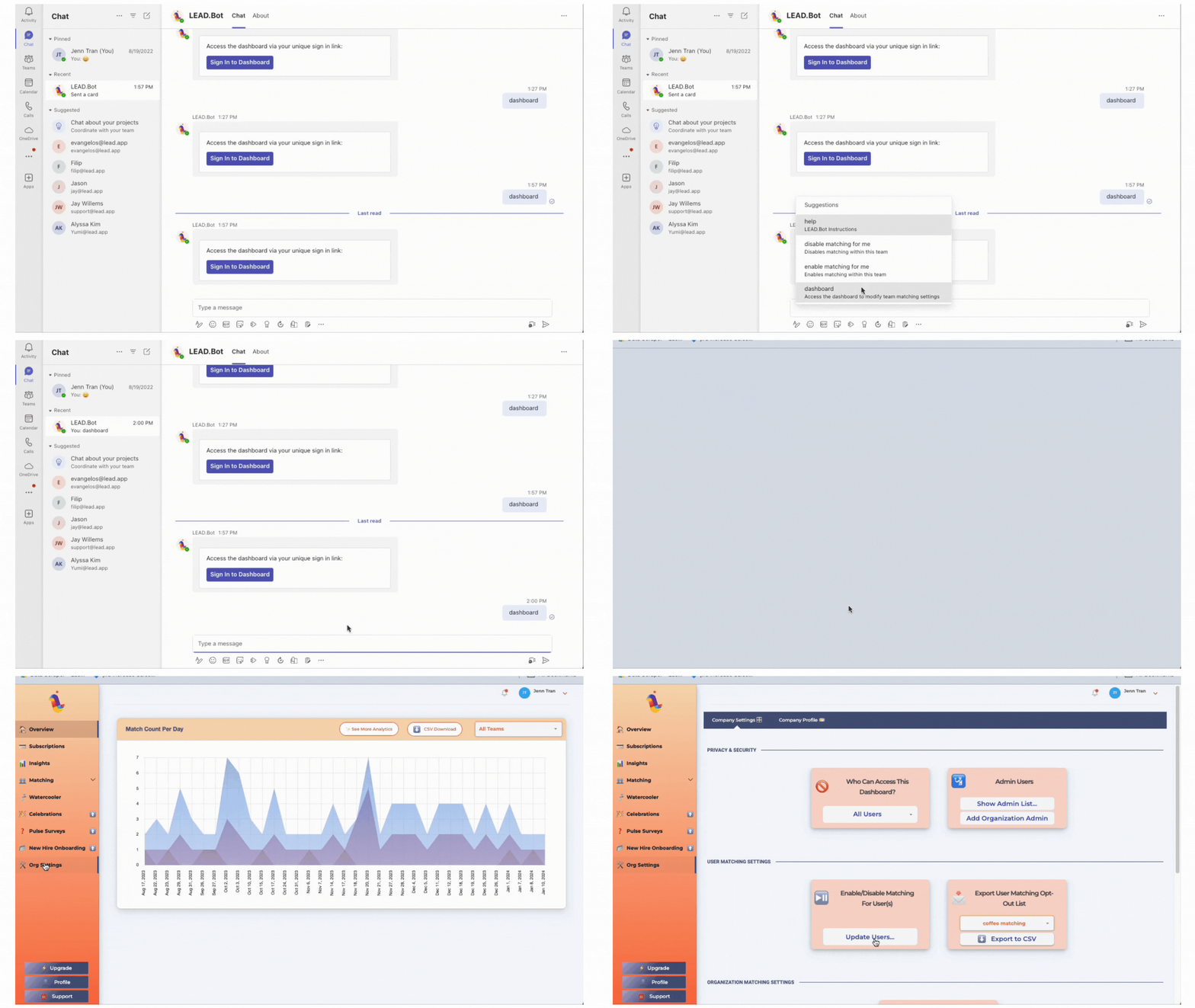
Q7. How do I disable/ enable the matching for certain users as an admin
Category: Microsoft TeamsBy LEAD Editorial TeamMarch 5, 2024

Author: LEAD Editorial Team

Post navigation

PreviousPrevious post:LEAD.bot Use CasesNextNext post:Optimizing New Hire Onboarding and Leadership with People Analytics: Insights from Walmart

Related Posts

Effective-Employee-Check-ins_-Best-Practices
Effective Employee Check-ins: Best Practices
December 10, 2024
Meta Workplace Alternatives - Slack and Microsoft Teams
5 Reasons to Migrate to Slack MS Teams Before Meta Workplace Shuts Down
May 22, 2024
LEAD.bot Use Cases
LEAD.bot Use Cases
March 5, 2024
Program Announcement Templates for LEAD.bot
Program announcement templates
March 5, 2024
How to Launch LEAD.bot Matching Connect Successfully
How to launch LEAD.bot Matching-Connect successfully
March 5, 2024
FAQ for LEAD.bot Participants
FAQ for LEAD.bot Participants (Standard & Engagement Plan)
March 1, 2024

LEAD

hi@lead.app

Facebook-f X-twitter

LEAD.bot

  • Optimize Workforce Collaboration
  • New Hire Onboarding
  • ONA-powered Engagement Survey & Insights
  • Inclusive Peer Learning & Mentorship
  • Birthday & Anniversary Celebration
  • Inclusive Peer Learning & Mentorship
  • Optimize Workforce Collaboration
  • New Hire Onboarding
  • Pulse survey
  • Birthday and Anniversary Celebration
  • Virtual watercooler
  • Knowledge Network Insight
  • Subject Matter Expert Finder

Governance & Compliance

  • Terms of Service
  • Privacy Policy
  • Trust at LEAD
  • Terms of service
  • Privacy Policy
  • Trust at LEAD

FAQ

  • LEAD.bot for Microsoft Teams
  • LEAD.bot for Slack
  • LEAD.bot for Microsoft Teams
  • LEAD.bot for Slack

@2025 Lead, Inc.

SCHEDULE A DEMO


Request A Demo

Request Demo

To learn more or request a demo, feel free to contact us.

[contact-form-7 id=”10″]

The video will automatically play once you fill out this form.

video

[contact-form-7 id=”1364″]