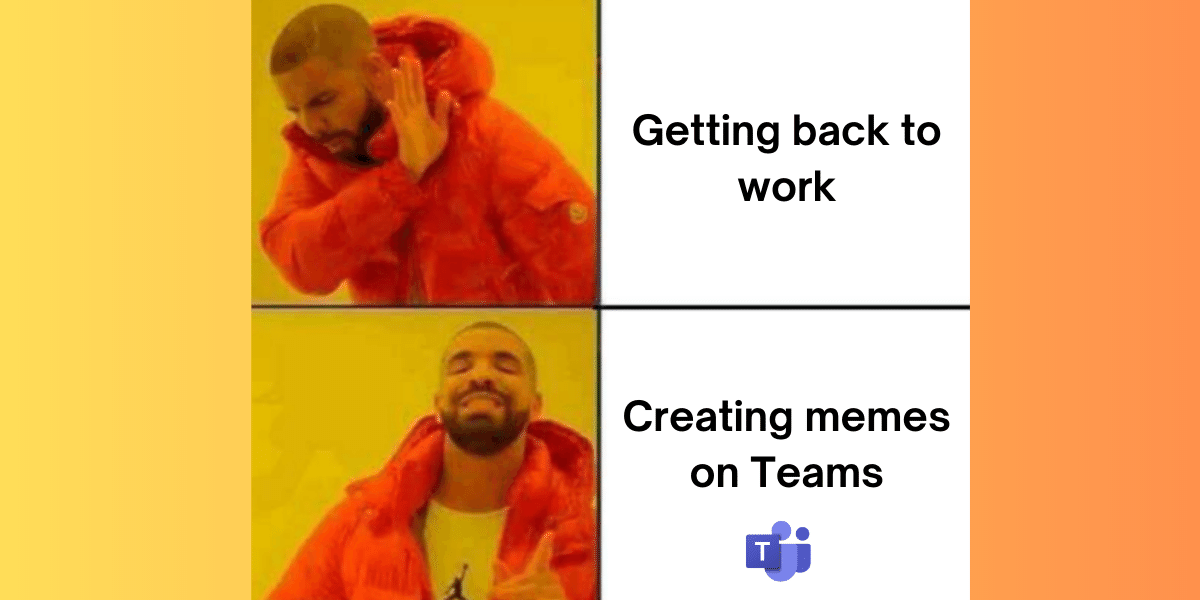
Memes have been making their way into mainstream business culture, with brands using them on social media platforms like Twitter (which is now “X”) to boost engagement, build communities, and connect with younger audiences. Last year, Microsoft Teams, one of the most popular collaboration tools, surprised users by introducing a dedicated meme feature, allowing users to create and share memes directly within the platform.

The LEAD.bot team has thoroughly enjoyed exploring this feature and now aims to share its potential with others. In this guide, we will delve into the art of creating memes in MS Teams, providing inspiring examples to get you started.
For those unfamiliar with the term, memes are humorous or thought-provoking pieces of content, often in image or video format, that get copied, edited, and shared online.
A great example of a popular meme is The Cat Meme. The “Woman yelling at a cat” meme gained popularity in Fall 2019. It features a photo of a blonde woman yelling at a white cat sitting in front of vegetables. The image represents situations where one person is emotional and the other is unbothered. The viral image has been widely used with humorous text to convey relatable situations. It gained significant traction on social media with thousands of retweets and likes in a short period.

So, why make memes with LEAD.bot in MS Teams?
1. Building Team Spirit
Memes are designed to be fun and amusing, making them powerful tools for team building. They can create a positive atmosphere, break the ice during collaborative projects, and provide a platform to share common workplace experiences.

2. Showcasing Creativity and Personality
LEAD.bot in MS Teams offers ample flexibility to create personalized memes that reflect your team’s personality. Expressing your thoughts and feelings through memes adds a touch of humor to the workday and helps colleagues get to know each other better.

3. Boosting Engagement
Memes are highly shareable, making them ideal for increasing engagement on social media and communication platforms like MS Teams. Sharing memes in real-time with colleagues worldwide keeps everyone engaged and entertained.
4. Fostering Virtual Connections
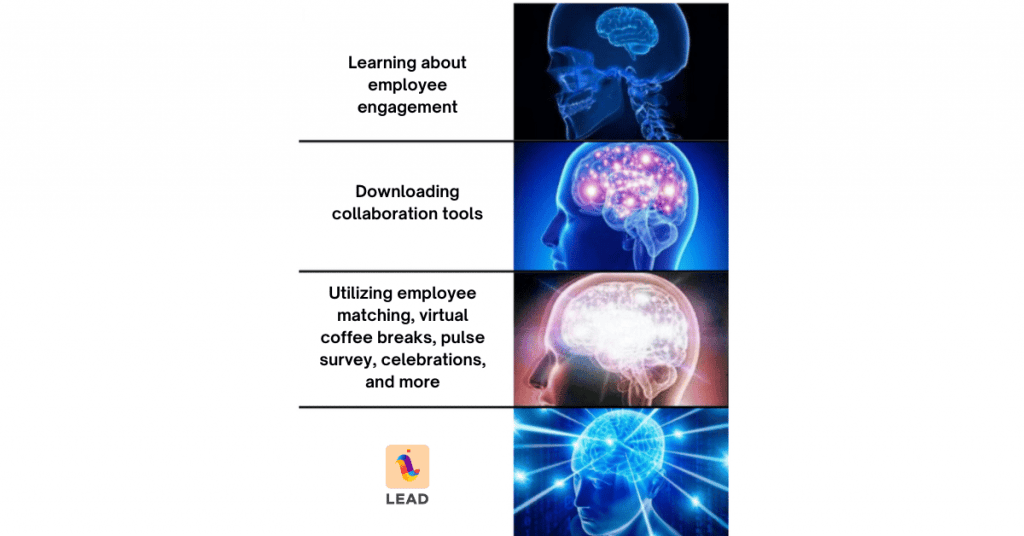
Memes are excellent tools for connecting remote employees and fostering a sense of community beyond physical office boundaries. In addition to other initiatives like LEAD.bot, memes provide a fun and informal way for remote employees to interact with each other.
Now, let’s explore the simple steps to create a meme with LEAD.bot in MS Teams:
Step 1: Find The Sticker Icon
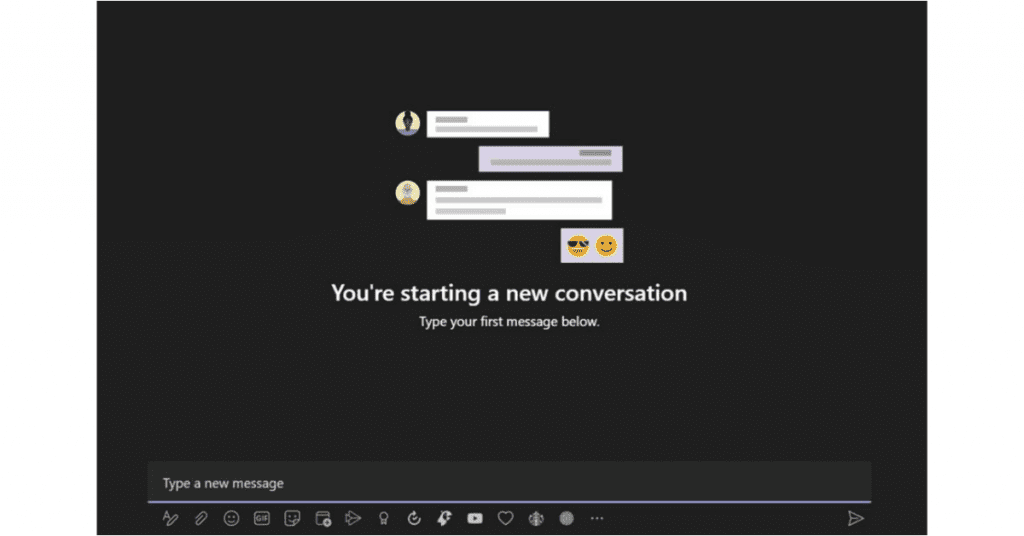
Locate the sticker tab in MS Teams, accessed via the sticker icon (sticky note icon) below the message composition box.
Step 2: Find A Meme Template
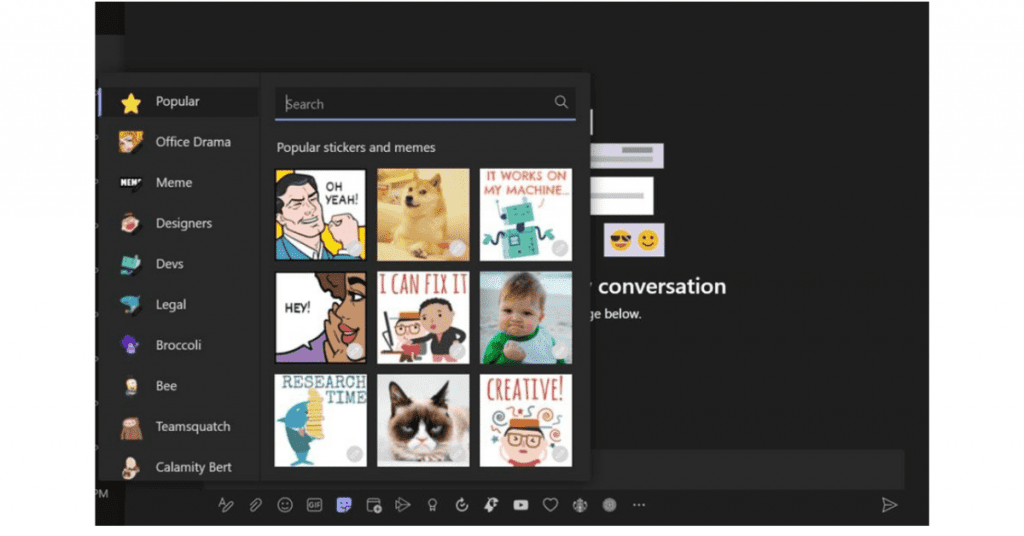
Explore the list of stickers and meme templates in the sticker tab to find a suitable template for your meme. LEAD.bot provides helpful categories to filter templates, making it easier to find what you need.
Step 3: Enter Your Text
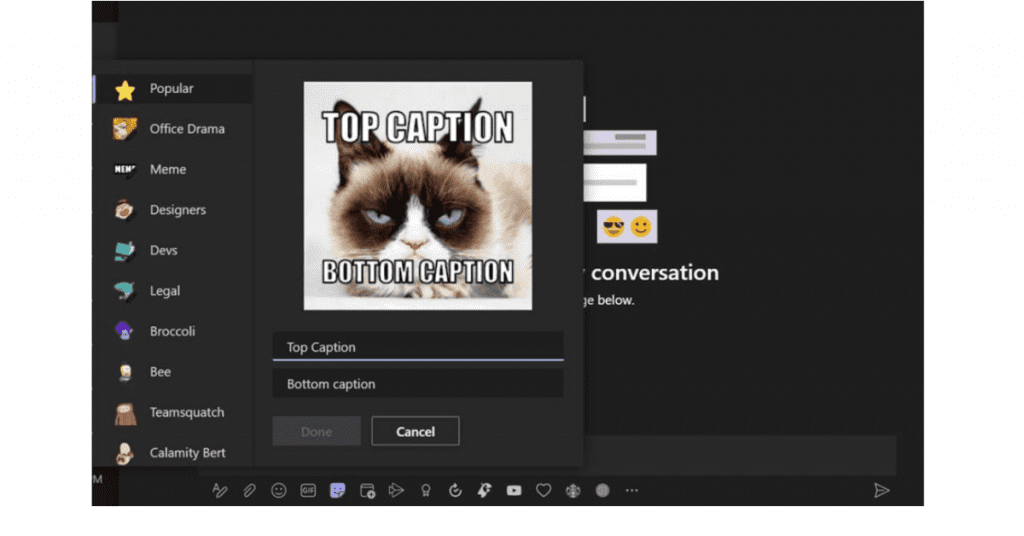

Add your creative and witty text to the selected template. Remember to keep it concise, humorous, and considerate of your coworkers’ sensibilities.
In conclusion, navigating the challenges of remote work can be daunting, but fostering meaningful connections through spontaneous and informal communication is key. Memes, along with LEAD.bot, can significantly enhance team spirit, foster virtual connections, and promote a collaborative and fulfilled workforce. With LEAD.bot, remote employees can engage in short, informal chats, facilitating learning, bonding, and stress relief. By embracing the power of memes and fostering connections, everyone stands to benefit.